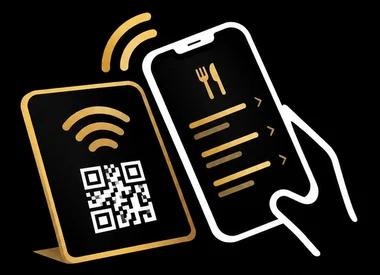
How Guests Use an NFC Menu: Step-by-Step Guide for Restaurants
October 30, 2026
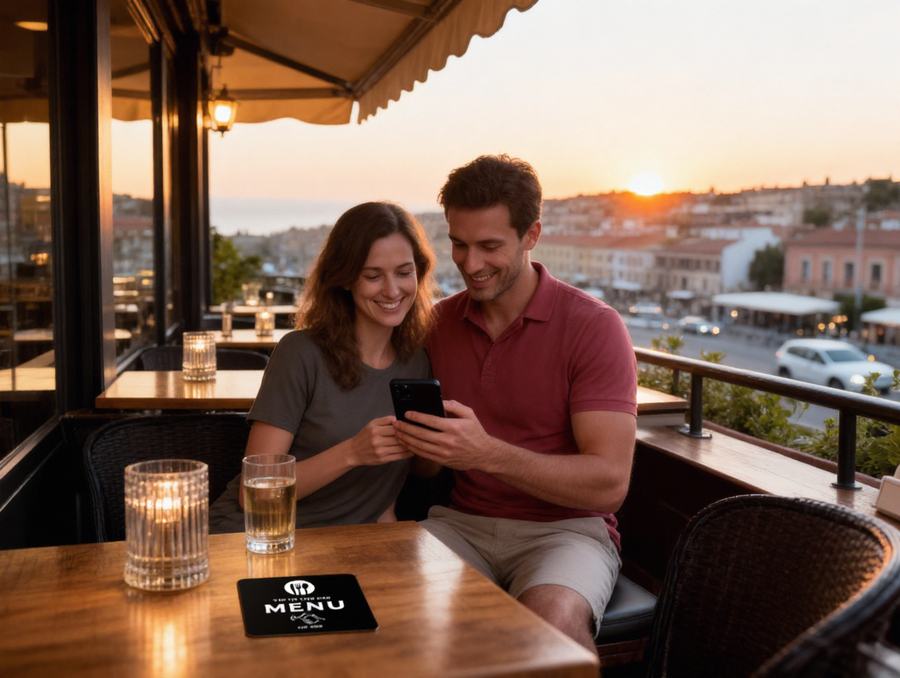
When a guest uses an NFC menu card, they simply hold their smartphone near the card for a moment, and your digital menu opens automatically in their phone's browser, translated into their preferred language. The entire process takes just a few seconds and requires no app download or special setup from the guest's side.
Understanding this process helps restaurant and cafe owners see why NFC menus create such a smooth experience for diners. Let's walk through exactly what happens at each step.
Step One: The Guest Brings Their Phone Near the Card
The guest holds their smartphone within a few centimetres of the NFC menu card, usually placed on the table or near the entrance. NFC technology has a very short range by design, which means the phone needs to be quite close to the card to detect it.
For newer iPhones, specifically iPhone XS, XR and all later models, nothing else is required. These phones read NFC tags automatically in the background, even when the screen is locked. The guest doesn't need to open any app or change any settings.
For older iPhone models, the guest would need to open an NFC reader app first, but since most iPhones in use today are from recent years, this scenario is becoming less common.
Android phones handle NFC slightly differently. The guest needs to have NFC switched on in their settings. Most Android users who tap cards or use contactless payments already have this enabled. Once NFC is on, Android phones detect the card when brought close, similar to newer iPhones.
Step Two: The Phone Detects the Card and Shows a Notification
When the phone comes within range and detects the NFC signal, a small notification appears at the top of the screen. This typically shows a preview message and prompts the guest to tap the notification to continue.
The notification appears within a second or two of bringing the phone close. If nothing happens, the guest might need to adjust the position of their phone slightly, as the NFC antenna location varies between phone models. The back of the phone near the camera area usually works best.
This notification step happens automatically without the guest needing to unlock their phone or open any application beforehand.
Step Three: The Menu Opens in the Browser
When the guest taps the notification, their phone's web browser opens and loads your digital menu. This works with whatever browser they normally use: Safari on iPhones, Chrome on Android, or any other browser set as their default.
The menu appears as a webpage, which means it works across all phone types and brands without requiring any special software. The guest sees your menu items, descriptions, prices, and images exactly as you've set them up in your online menu editor.
Because the menu loads in a standard browser, guests can bookmark it, share it with their dining companions, or come back to it later if they want to check your menu before their next visit.
Step Four: Automatic Translation into the Guest's Language
The clever part happens next: the menu detects the guest's phone language settings and displays the menu in that language automatically. If their phone is set to Spanish, they see Spanish. If it's set to Japanese, they see Japanese.
This translation happens without the guest needing to press any buttons or select from a language menu. For international tourists or residents who speak other languages, this removes a common barrier and makes them feel welcome immediately.
The venue doesn't need to provide translations either. The system handles this automatically for dozens of languages based on what you've entered when creating your menu.
Reading and Navigating the Digital Menu
Once the menu is open, guests scroll through it just like any webpage. They can see all your categories, read item descriptions, check prices, and view photos if you've added them.
If you've added your Google review link when setting up your menu on taptomenu.online, happy guests will see a gold-star button that takes them directly to leave a review. This gives satisfied diners an easy way to share their positive experience right from the menu itself.
The menu stays open in their browser for the duration of their visit. If they close it accidentally, they can simply tap the NFC card again to reopen it instantly.
Frequently Asked Questions
Do guests need to download an app to use an NFC menu?No. The menu opens directly in the phone's web browser. Newer iPhones (XS/XR and later) read NFC tags automatically, and Android phones with NFC enabled do the same. No app download is required from the guest's side.
What if a guest's phone doesn't have NFC?Most smartphones from the last several years include NFC capability. For the rare guest with an older phone without NFC, you can print a QR code that opens the same digital menu when scanned with the camera.
Can guests access the menu again without coming back to the restaurant?Yes. Once opened, the menu URL stays in their browser history, and they can bookmark it. Some guests save it to check your offerings before their next visit or to share with friends.
Tap the card. The menu opens.
An NFC menu card for restaurants and cafes. Guests hold their phone near it and your menu opens instantly, automatically translated into their language. No app, no printing new menus.
Order your cards