How to Explain Your NFC Menu Card: Table Sign That Works
October 28, 2026
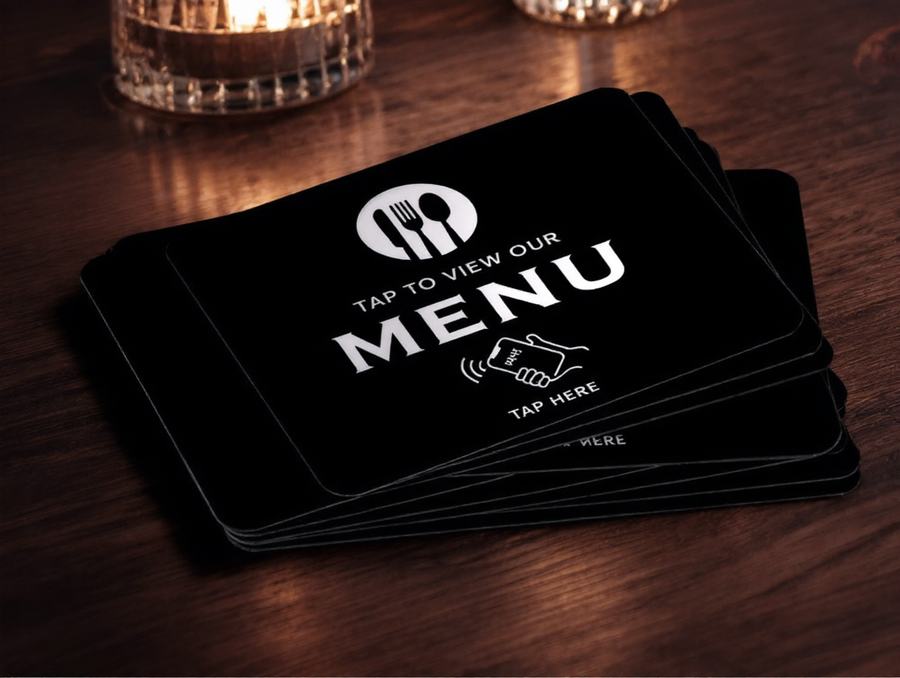
The most effective table sign for an NFC menu card contains just three elements: a clear instruction to "Hold your phone here," a visual indicator showing where to tap, and a brief mention that the menu will open automatically in their language. Guests need to understand the action immediately, without reading a paragraph of text while standing at their table.
When you introduce contactless menu technology to your restaurant or cafe, the biggest challenge isn't the technology itself—it's communicating to guests what they should do. A well-designed table sign solves this problem in seconds, preventing confusion and ensuring guests can access your digital menu without calling for staff assistance.
Keep the Core Message Simple
Your table sign should communicate the essential action in as few words as possible. Most guests have never used an NFC menu card before, so they need clear, direct language. The instruction "Hold your phone to the card" or "Tap your phone here" works better than technical explanations about NFC technology or contactless features.
Include a small icon or arrow pointing to the exact spot where guests should hold their phone. The NFC reading range is only a few centimetres, so precision matters. A simple phone icon or a circular target symbol helps guests position their device correctly on the first attempt.
Mention one key benefit that matters to your guests: automatic translation into their language. This is particularly valuable if you serve international visitors or tourists. A single line like "Menu opens in your language" immediately explains why this method is better than a traditional printed menu.
Design for Quick Recognition
The table sign should be visible the moment guests sit down, but not dominate the table. A small standing card or tent sign works well for most settings. The design should match your restaurant's aesthetic—a rustic cafe needs a different visual approach than a modern bistro.
Use contrasting colors to make the instruction stand out. The most important text should be the largest, with supporting details in smaller type. Avoid cluttering the sign with multiple messages about allergens, wifi passwords, or other information. Each additional element dilutes the primary instruction.
Consider your lighting conditions. In dim evening lighting, guests need high contrast and clear typography to read the sign quickly. Test your design in actual table conditions, not just on a computer screen.
Address Common Guest Concerns
Some guests worry about downloading apps or sharing personal information. Your table sign can preemptively address these concerns with a brief reassurance. A line stating "No app needed" removes a common barrier for hesitant guests.
Technical details matter for accuracy: iPhone XS, XR and newer models read NFC tags in background mode automatically when the phone is unlocked. Older iPhones require an NFC reader app. Android phones need NFC switched on in settings, though most modern Android devices have this enabled by default.
You don't need to explain these technical specifications on your table sign—just ensure staff know the basics so they can help guests who encounter difficulties. Most guests will simply hold their phone to the card and see the menu open in their browser immediately.
Test and Refine Your Message
Watch how your first guests interact with the table sign and NFC card. Do they hesitate before trying? Do they hold their phone in the wrong position? Do they ask staff for clarification? These observations reveal where your messaging needs adjustment.
The wording that seems obvious to you might confuse guests unfamiliar with the technology. Be prepared to revise your table sign based on real-world usage. Sometimes changing a single word—from "scan" to "tap," for example—makes the instruction clearer.
If you're setting up a digital menu system like the one available on taptomenu.online, you can create a draft menu for free with just a name and email, preview exactly what your guests will see, and refine your approach before ordering NFC cards. This preview helps you understand the guest experience from their perspective.
Frequently Asked Questions
What if a guest's phone doesn't work with the NFC card?Older smartphones may not have NFC capability, or the feature may be disabled in settings. Always have an alternative ready, whether that's a QR code backup on the same card or a few printed menus available on request.
How long should guests hold their phone to the card?Just a second or two is enough. The phone needs to be within a few centimetres of the NFC tag to read it. If nothing happens immediately, guests can try holding the phone still for an extra moment or repositioning it slightly.
Should the table sign mention that the menu opens in a browser?Most guests don't need to know this technical detail—they just want to see the menu. However, if guests at your venue frequently ask about app downloads, adding "Opens in your browser—no app required" can prevent that question.
Tap the card. The menu opens.
An NFC menu card for restaurants and cafes. Guests hold their phone near it and your menu opens instantly, automatically translated into their language. No app, no printing new menus.
Order your cards