Create a Free Digital Menu Before Ordering NFC Cards
November 13, 2026
You can create and preview your restaurant's complete digital menu for free before committing to NFC cards, allowing you to test the design, translations, and functionality exactly as your guests will see it. This approach eliminates risk and ensures you're happy with your digital menu before making any purchase.
Why Build Your Menu First
Ordering NFC cards before seeing your actual digital menu is like printing traditional menus before writing them. You need to know exactly what your guests will experience when they tap their phone on the card. Building your menu first lets you check how your dishes look on different phones, whether the automatic translations make sense, and if the layout works for your specific menu structure.
Many restaurant owners discover during the preview stage that they want to reorganise sections, add dish photos, or adjust descriptions. Making these changes before ordering cards means you can launch with confidence, knowing your digital menu is exactly right.
Creating Your Free Digital Menu
The process starts with basic information: your restaurant name and contact email. On taptomenu.online, this gives you immediate access to a menu builder where you can add your dishes, sections, prices, and descriptions. The interface is designed for restaurant owners, not technical experts, so you enter information the same way you would write a traditional menu.
As you build, you can add allergen information, mark dishes as vegetarian or vegan, upload photos, and organise items into logical sections. The system handles the technical side, including setting up automatic translation into dozens of languages. Your menu content stays in your original language, and guests see it translated into their phone's language when they view it.
Free draft menus remain accessible for 14 days, giving you plenty of time to refine your content, show it to staff members, and make decisions without pressure.
Previewing the Guest Experience
The preview function shows you exactly what appears on a guest's phone screen. You can check how your menu looks on different devices, test the translations by switching languages, and navigate through sections as a guest would. This is the moment to catch any issues: a dish name that translates awkwardly, a section that needs reordering, or a description that's too long.
Pay attention to how the menu flows. Guests scroll through on their phones, so the order of sections matters. Most restaurants put drinks first or last, depending on their service style. Special offers or chef recommendations often work well near the top.
If you've added your Google review link, you'll see how the gold-star button appears on the menu, allowing happy guests to leave a review in one tap. This integration sits naturally within the menu interface without disrupting the browsing experience.
Making Changes Before Ordering
The beauty of a digital menu system is flexibility. During the preview phase, you can add seasonal specials, remove sold-out items, adjust prices, and refine descriptions as many times as needed. These same editing capabilities remain available after you launch, but getting the foundation right first makes ongoing management simpler.
Consider showing the preview to your serving staff. They interact with guests daily and often spot menu descriptions that could be clearer or suggest a better order for dish presentation. Their input during this free preview stage can improve the final result significantly.
Ordering Cards When Ready
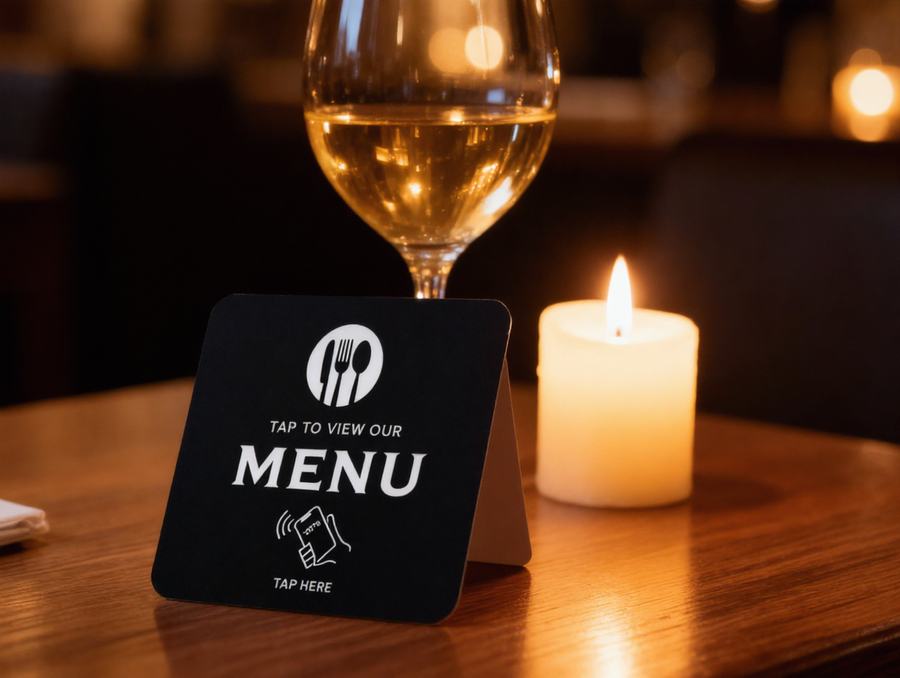
Once your digital menu looks exactly right in preview mode, you can order the physical NFC cards. These cards contain tiny chips that communicate with phones over a range of a few centimetres. When a guest holds their phone near the card, your menu opens in their browser automatically.
iPhone XS, XR and newer models read NFC tags in the background without requiring any app. Older iPhones need an app to scan NFC tags. Android phones need NFC switched on in settings, but most newer models have this enabled by default. Guests never need to download an app to view your menu.
The NFC tags are rewritable unless locked, but when you order a TapToMenu NFC menu card, the technical configuration is already handled. The card simply points to your digital menu, which you continue to edit online whenever needed. Update your menu in the morning, and guests see the changes immediately when they tap the card at lunch.
Frequently Asked Questions
Can I change my menu after ordering the NFC cards?Yes, you can edit your digital menu anytime through the online dashboard. The NFC cards always point to your latest menu version, so changes appear immediately without needing new cards.
What happens if I don't order cards within 14 days?Your free draft menu remains accessible for 14 days. If you need more time to decide, you can typically request an extension or recreate the menu when you're ready to proceed.
Do I need different cards for different languages?No, one card works for all languages. The menu detects each guest's phone language setting and displays the appropriate translation automatically.
Tap the card. The menu opens.
An NFC menu card for restaurants and cafes. Guests hold their phone near it and your menu opens instantly, automatically translated into their language. No app, no printing new menus.
Order your cards